Sunday, April 2, 2017

How to Root Android with KingoRoot (PC Version)

KingoRoot Android(PC Version) offers every Android user the easiest one-click method to root any Android devices. How to use this universal Android root software to root your Android device? Here we go.

Root your Android via KingoRoot APK without connecting to PC.


IMPORTANT It is suggested that you try KingoRoot Apk first. It is more convenient and easy to use without connecting to a computer.
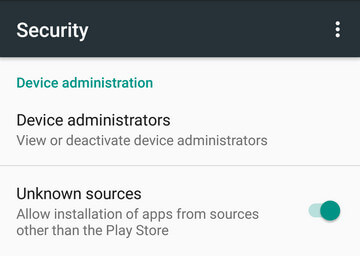
  • Allow installation of apps from unknown sources on your Android device.
  •  Settings > Security > Unknown Sources
  • Free download KingoRoot.apk on your Android.
  • Install and launch KingoRoot.
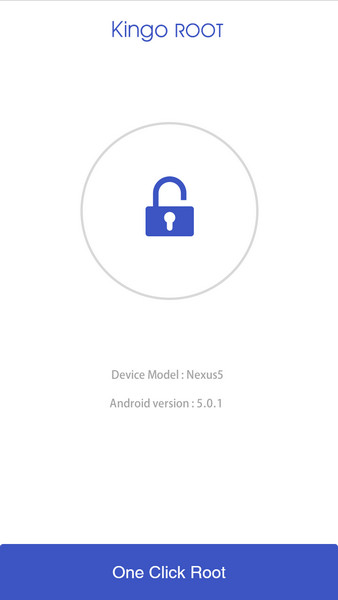
  • Press "One Click Root" on the main interface.
  • Wait a few seconds until the result appear.
  • Try a few more times for different rooting methods if failed.
  • If still failed, refer to KingoRoot Android PC Version, which has a higher success rate.
For more detailed tutorial, please click

How to Root Android with KingoRoot (PC Version)


Make sure you get everything right beforehand.
  • Device powered ON
  • At least 50% battery level
  • Internet connection necessary
  • USB Cable (the original one recommended)
START ROOTING...
  1. Free download and install KingoRoot Android (PC Version).
  2. Kingo offers the best one-click Android root software for free. Just download and install it now.
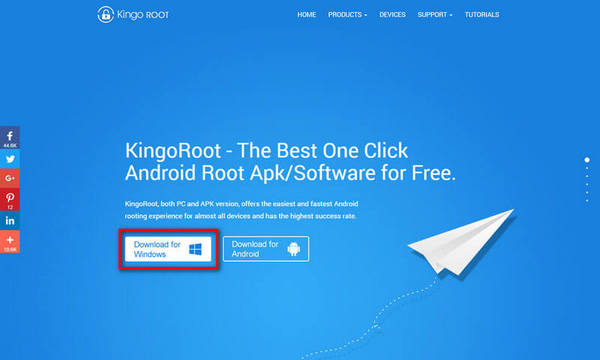
    Root any Android device with KingoRoot, the best one-click Android root tool.
  3. Double click the desktop icon of Kingo Android Root and launch it.
  4. After launching Kingo Android Root, you will see its interface as shown below.
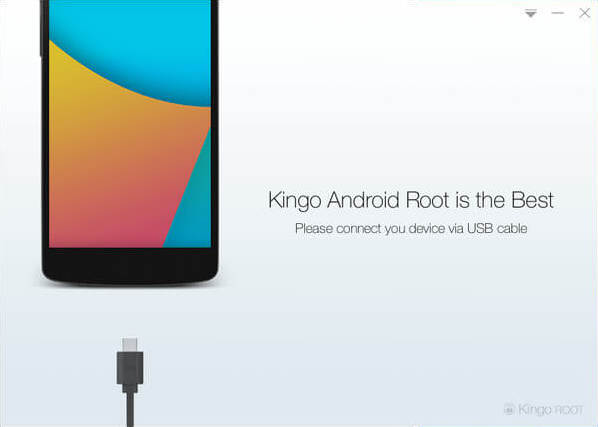
    Root any Android device with KingoRoot, the best one-click Android root tool.
  5. Plug your Android device into your computer via USB cable.
  6. If your device driver is not installed on your Computer, Kingo will install it for you automatically. Make sure you get Internet conenction so that device driver can be downloaded. If you are using Windows 8, you may need to change some settings first. When running Kingo Android Root on Windows 8, the issue you may most likely encounter is driver installation looping.
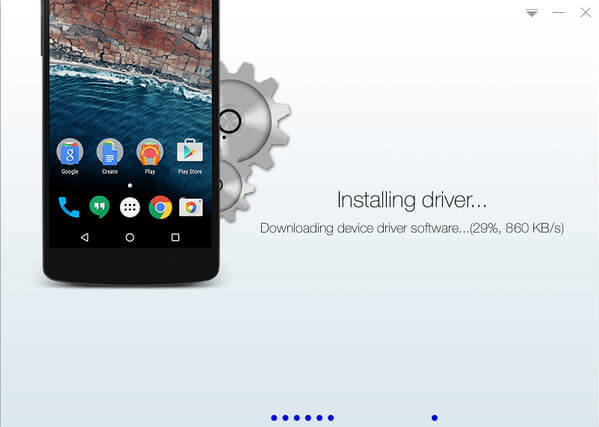
    Root any Android device with KingoRoot, the best one-click Android root tool.
  7. Enable USB Debugging mode on your Android device.
  8. USB Debugging mode enabled is a necessary step of Android rooting process.
    INPORTANT: Pay attention to your device screen for a prompt window. Tick "Always allow from this computer". If you don't, you will probably get yourself an OFFLINE DEVICE.
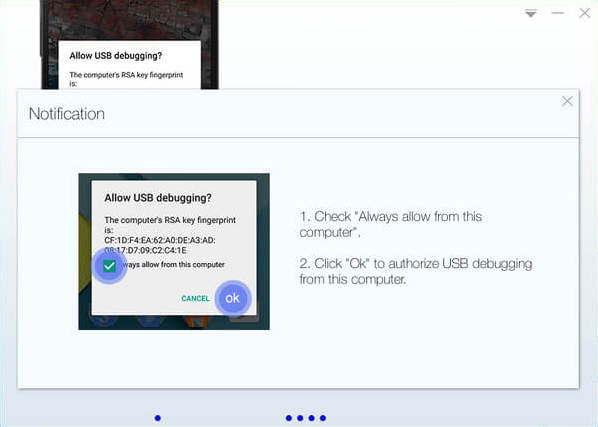
    Root any Android device with KingoRoot, the best one-click Android root tool.
  9. Read notifications carefully before rooting your device.
  10. Android rooting is nothing big. However, it is not exactly a small issue either. Rooting your device may open a door for you, and yet with risks.
    Android rooting is a modification process to the original system, in which the limitations are removed and full-access is allowed and thus resulting in the ability to alter or replace system applications and settings, run specialized apps and even facilitate the removal and replacement of the device's operating system with a custom one. Rooting your device will immediately void your warranty...  Click to know more about Android Rooting.
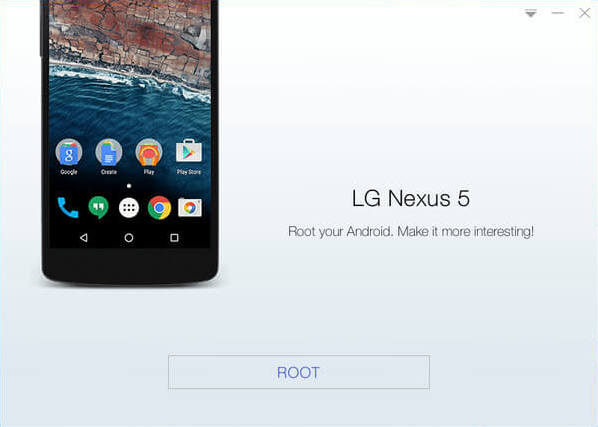
    Root any Android device with KingoRoot, the best one-click Android root tool.
  11. Click "ROOT" to root your device.
  12. Kingo Android Root will employ multiple exploits on your device, which will probably take a couple of minutes. In the rooting process, your device may be rebooted several times. Do not be panic, it is perfectly normal. And once it begins, please DO NOT touch, move, unplug or perform any operation on your device.
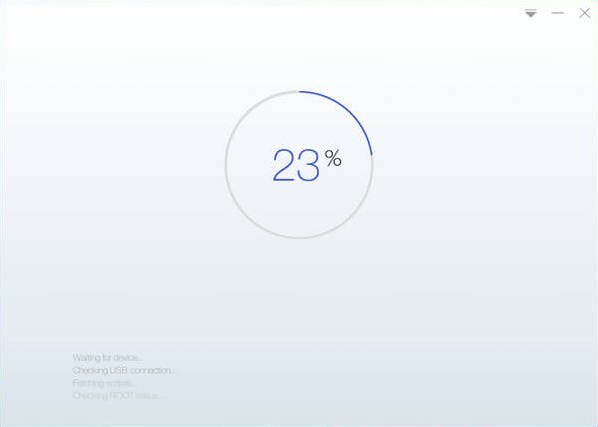
    Root any Android device with KingoRoot, the best one-click Android root tool.
  13. Root succeeded.
  14. Hopefully your device is well supported and successfully rooted by Kingo. Until your device reboots itself, do not operate.
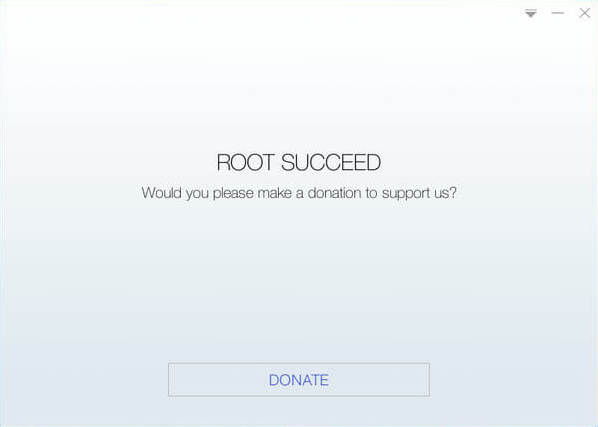
    Root any Android device with KingoRoot, the best one-click Android root tool.
  15. Check the root status of your device.
  16. Normally, you will find an app named "SuperUser" installed on your device after successful rooting.
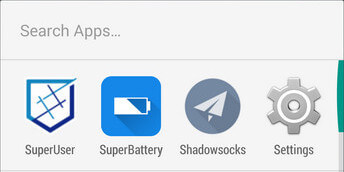
    Root any Android device with KingoRoot, the best one-click Android root tool.

Labels: , ,

How to Root Android without Computer (APK ROOT without PC)

Kingo Android Root has launched its KingoRoot apk for Android, which provides a universal one-click Android root solution for Android users. It is easy to use and saves the trouble to connect to PC via USB cable.
Before jumping into the rooting process, please make sure you get everything right beforehand.
  • Device powered on.
  • At least 50% battery level.
  • Internet connection necessary (Wi-Fi network suggested).
  • Allow installation of apps from unknown sources.
     Settings > Security > Unknown Sources        

Root Android via KingoRoot APK Without PC Step by Step


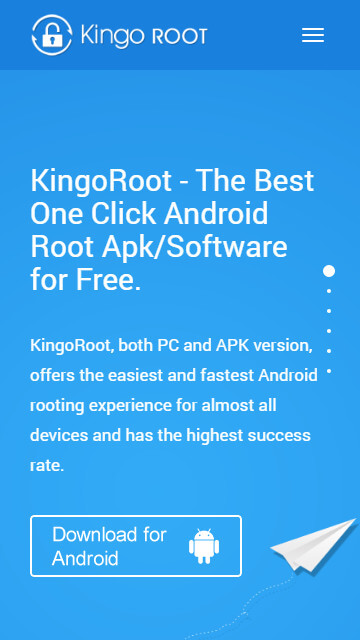
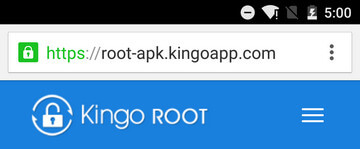
Step 1: Free download KingoRoot.apk.

Root Android with KingoRoot apk, without connecting to PC
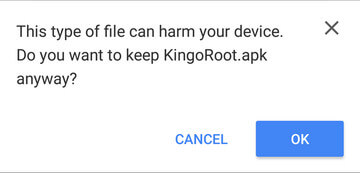
The download will be automatically started. If Chrome has warned you about KingoRoot.apk, click "OK" to proceed.
KingoRoot Apk Download, the best one-click root apk for free
If you are using PC to view this tutorial, you have three choices.

Step 2: Install KingoRoot.apk on your device.

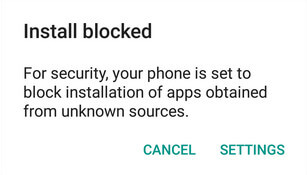
If you didn't check "Unknown Sources" in Settings > Security, then during installation, you will get a prompt "Install blocked", stating that "For security, your phone is set to block installation of apps obtained from unknown sources".
Root any Android device with KingoRoot, the best one-click Android apk root tool.
Just follow phone instructions and install Kingo Root on your device and allow installs from "Unknown Sources".
Root any Android device with KingoRoot, the best one-click Android apk root tool.

Step 3: Launch "Kingo ROOT" app and start rooting.

Kingo Root is very user-friendly and easy to use. Click "One Click Root" to start the rooting process.
Kingo Root Apk Main Interface

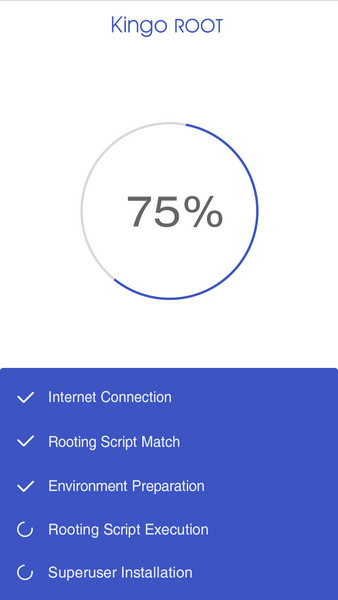
Step 4: Waiting for a few seconds till the result screen appear.

Kingo Root Apk Rooting
]

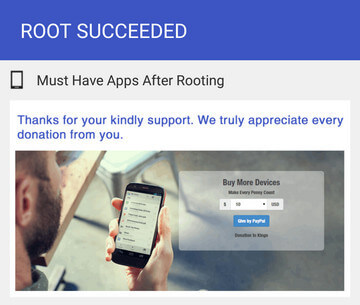
Step 5: Succeeded or Failed.

It is highly recommended that you try several times when rooting with KingoRoot apk version. We have several rooting methods integrated in apk root, however, it will only run one at a time.
Kingo Root Apk Root Succeed

MORE TO SAY If KingoRoot APK failed to root your device after several trials, please refer to KingoRoot Android (PC Version), which has a much higher success rate due to technical reasons.
How to root any Android device and version with KingoRoot PC Version?

Labels: ,

Tuesday, March 22, 2016

Google Play Store Error 498 – 5 Ways to Fix it

Recently While Downloading Asphalt game on my Smartphone I got an Error 498 in Google Play Store. To be Exact, the Error Reads “Error 498 has occurred while communicating with the server“.
I Tried again but the Same Error Again. After Few Tweaks i was finally able to download and Install  Asphalt on my Phone.
Because i Faced this error in Google Play store, i though there will be many other people facing the same error and so this Guide on how to Fix Error 498 in Gooogle Play store.
Here on this Page i will be sharing few Methods that will help you to get rid of it. Though any one listed Method will not work for Everyone to Get rid of Google Play Error 498 because there are different reasons that are responsible to cause this error.

Causes of Error 498 in Play store

There are Few things that causes this Error on your Smartphone while you try to download any app from Google Play store.
  • The Most common issue is the Size of Device’s Cache Partition. You will get Error 498 in play store if you try to download apps that are larger in size then your Device’s Cache partition.
For Eg: Your Cache partition is of 30M and you try to download an app with Size 35M then you might get this error. Usually Play store have issues when downloading apps that are large in size.
Google Play Store Error 498
  • Another Reason is Google Servers from where you are trying to download the apps might be under maintenance. So if you are downloading an App and you get Play store erro 498 message then Server may be the issue. Just wait and try to download it again.
So these were just Couple of Possible Reasons for a User to get this Error in Google Play store, Now let us see Some Possible Ways to Fix it.

5 Ways to Fix Google Play store Error 498


Method 1: Clearing Cache

Most Common Reason you might be facing this Error  is because of Cache, so i will start the Methods list by Recommending you to Clearing the Cache.
To do So, Just navigate to Settings > Applications > Manage Applications > Select Google Play store > Clear Data & Clear Cache.
Now Try and download the App if Cache was the problem and clearing it solved the Issue for you.  One more reason of listing this method on top is this worked for me and i was able to download the game easily after clearing the Cache. Though the Solution for all might not be the same so try below methods too.

Method 2: Use Wifi to Download.

Many a times your Internet Service Provider(ISP) Creates this Problem of Error 498 and many other Errors. so Try and get access to Wifi somehow and try to download the app thats giving you the Error.

Method 3: Adding New Play Store account.

You will need to Add a new Play store account inorder to fix this Error. Go to Settings > Accounts > Add New Account > Click on Google > Next > Enter email > Done.
After setting up new Play store account try to download the same app and see if this have Solved your Problem.

Method 4: Connecting with Computer:

One of my Friend reported that he fixed Error 498 by installing apps from Computer to Smartphone. You just need to connect your Smartphone to Computer Using USB Cable. then goto Google Play Store using your Favourite Browser on your Computer. Then Search for the App which was getting error on your Smartphone.
Click on the Preferred Result that you get, next On the App page you will see Install button. Click it to Download that app On your Smartphone. No it will not Install on your Computer. it will Install on your Smartphone. Just make sure your Smartphone is Connected or else you will not See Install Button.

Method 5: Uninstall & reinstall Google Play store:

If your Phone is Rooted then You might just want to Uninstall and Then Reinstall Google Play store so that to make sure that you actually get rid of Error 498 in Google Play Store. If any of the above Listed methods don’t work for you then go for this one and you will fix it for sure.
So these were 5 Methods to Fix Error 498 In Play Store. I hope this helps you to get rid of this error and you can again download your favourite app from play store just like before.
If these Helps then please don’t forget to spend few seconds and Comment below which Method solved the Issue for you. Or If you have any other way to get rid of this error message in play store then feel free to share it in Comments below.

Labels:

Thursday, March 3, 2016

HOW TO RECOVER LOST DATA ON ANDROID(ROOTED/NON-ROOTED)

’s not new, We’ve all done it: accidentally deleted files, photos or videos by accident. No need tobe panic, though. There are ways to recover your data whether you’re rooted or not. Time is always of the essence though: do not save anything else to your device or switch it off until you attempt recovery. Turn off your Wi-Fi and 3G/4G connection so that no automatic updates occur and overwrite anything before you’ve had a chance to recover lost data on Android.

Working Tricks to recover Android lost data (OT ROOTED)

If you haven't heard what is "Rooted" that means you might not have rooted
Once you’ve checked the obvious – such as looking in the Trash of your photos app, which stores files you’ve deleted from your gallery until it’s emptied – the next step is to connect your phone to a PC and run a file recovery app. However, there’s one little problem with that: post-Ice Cream Sandwich versions of Android ditched the Mass Storage Protocol that made your internal storage look like a flash drive, so many tried and tested recovery methods won’t work any more. Don’t worry, though, because we’ve got a solution to that too.
If the file(s) you’re looking for were on your memory card, you can use a Micro SD Card Adapter to attach your microSD via USB. Then download Recuva (you can use either the paid or free version), which is a program to recover files. You can also use other programs, such as Coolmuster or Wondershare Dr. Fone (which requires root but is available for Mac or PC), but Recuva is a great free tool.
recover lost data from android
Note: Normally, for most of these programs to work, your memory must be formatted as FAT32, NTFS or similar. If  format is not recognized for some reason, you can just do a complete copy of its contents to your computer, reformat the memory card as FAT32 and then dump the copied files back on it and continue the process.
When you run Recuva, the first thing to do is select the type of file you want to recover: Pictures, Videos, Music, Documents, etc. The option to restore from a specific location is available and you can even set a specific folder to attempt recovery from. Note that Recuva will only display locations it can actually recover data from. Just follow the prompts in the program.
AndroidPIT-Recuva-File-Type-w628
Important: When you finish recovering your deleted files, it’s highly advisable to save them on a different device to the one on which they were originally lost: this can sometimes cause conflicts and hinder recovery. So if you are recovering files from your smartphone, record them on the hard disk of the PC and then transfer them over later, once they’re safe and sound.
If the file(s) were on your internal storage, don’t worry: we can fix that too. If you haven’t already enabled the developer options in Android, go to Settings > About Phone > Build Number (or your phone’s equivalent; for example, on a Galaxy S5 it’s Settings > About device > Build Number) and then tap the build number section seven times. Once you’ve done that, go into Settings > Developer Options and enable USB debugging. You should now be able to use an app such as Wondershare Dr Fone to scan your device.

Tips to Recover lost data on Android (If you have ROOT access to your android device)

  • First of all Download Undelete.
  • The application is very simple. The first thing to do is to select the storage device from which you want to retrieve your data (can be internal or external memory).
  • Then you scan the selected device.
  • The process may take between two and 10 minutes, depending on your memory size and the amount of stored data.
  • When finished you will be presented with retrievable data in several tabs: Files, Pictures, Music, Videos, Documents and Files. Recovered data returns to its place of origin, ie wherever it was saved before they were lost.
  • This option may only work partially (if there is a problem with your memory). In that case, proceed to the Recuva steps above, or use Wondershare or another root recovery program.


Labels:

HOW TO RECOVER DELETED TEXT MESSAGE

If you've accidentally deleted all your SMS messages – or even just a single, important message – you need to act fast. Lost messages are recoverable, but only until the portion of memory on which they were saved is over-written by an app update, file download or similar. So grab your phone and your computer and learn how to recover deleted text messages on Android.


Tools to recover deleted text messages

There are several different PC and Mac-based tools available. They essentially all do the same thing: scan your Android's memory, then identify and recover your deleted messages. Some cost money, some are free and some do more than others.


IMGL7251 2
Stay calm and do what you need to do quickly. / © J1TECHS
Whichever tool you choose, they'll all walk you through the process, which is usually only four steps long: connect, scan, preview, recover (the same process works for other data besides text messages). Some programs worth trying out include:


androidpit wondershare
Wondershare has a free trial that lets you recover deleted text messages. / © ANDROIDPIT

How to recover lost text messages on Android

I'm using Wondershare to demonstrate the procedure, but most programs have the same – or at least similar – steps.
1. Enable Developer options on your Android phone. To do this, go to Settings > About phone and tap Build number until you see the notification that Developer options has been enabled.
2. Go to Developer options > USB debugging and check the box (or flip the switch, depending on your version of Android).


androidpit debugging
First you need to enable USB Debugging. / © J1TECHS
3. Download and install the free Wondershare trial (or another recovery tool of your choice) and connect your Android phone to your computer.


androidpit wondershare 2
Connect your phone to your PC with USB Debugging enabled. / © Wondershare
4. Follow the prompts in the recovery program to identify your device and scan or analyze your Android's memory.
5. Once the process is complete you can browse and preview both the deleted and undeleted data on your Android device. As long as the particular part of memory on which your data was originally stored has not been saved over, you can still retrieve it. This is why it's important to act quickly if you've accidentally deleted an SMS.


androidpit wondershare 3
You can filter the data you want to recover: in this case, text messages. / © J1TECHS
6. Next, open the Messages folder in the left-hand pane, select the messages you wish to recover and click Recover at the bottom right to put them back on your device or save them to your computer.
Note: if you want to complete this process without a PC, you will need root access on your device and, more than likely, a paid recovery app. Feel free to do it that way if you like, but it's easier (and free) to just use a computer.


androidpit wonderfone recover texts 7
The same tools can be used to recover photos, WhatsApp messages, music and more. / © J1TECHS

How to never lose a text message again

Maybe you've learned your lesson, maybe you haven't. If you want to avoid the panic of losing your messages and using a PC to recover them, the best thing to do is to back up your SMS messages regularly. The good news is, doing so only takes five minutes.
I use a free app called SMS Backup & Restore. It's straightforward, looks nice and works perfectly: all you need for this type of operation. Check out the screenshots below for the walkthrough.
SMS Backup & Restore Install on Google Play 1. Once you've downloaded and installed SMS Backup & Restore, open the app and tap Backup.
2. Next, choose what exactly you want to create a backup of, then – crucially – tap Local backup and upload if you want to send your backup to Google Drive, Dropbox or an email address.
3. Make your selection from the list that appears and then tap OK.


androidpit sms backup restore 2
SMS Backup & Restore is clean and simple to use. / © J1TECHS
androidpit sms backup restore 3
Hit Backup, make your selections and tap OK. / © J1TECHS
4. To restore your backed-up SMS messages, tap Restore on the app's home screen, then, on the Restore Backup page, you can just tap the backup name in the list to restore it (if it's stored locally).
5. If your backup is stored in the cloud, tap the overflow menu (three dots) at the top right, then Load from and select whichever cloud service it's stored on.


androidpit sms backup restore 4
You can back your messages up to cloud storage, then restore them. / © J1TECHS
6. There are plenty of extra options in SMS Backup & Restore, including scheduled backups and password protection. You can find these by tapping the overflow menu icon at the top right of the app's home screen, then hit Preferences.


androidpit sms backup restore 1
Take advantage of the opportunity to schedule backups and more. / © J1TECHS
Have you ever lost your text messages by accident? Did you manage to recover them? Share your tips and experiences in the comments.
.

Labels: