Monday, July 24, 2017

5 Threats To Your Security When Using Social Media


Social networking has changed the way we interact with friends and associates. While social networks, like Facebook, Twitter, YouTube, FourSquare, and Google+, play a significant role in our lives, they are also a high risk for security threats.
With hundreds of millions of users online, these tools not only attract friends and family wanting to stay in touch, but they also attract people wanting to know about you for the wrong reasons. Be aware of the top five security threats currently out there to help you stay safe online.
1. Having Your Identity Stolen
Identity thieves gather personal information from social media sites. Even if you have your account on the highest security settings, there are still ways for an identity thief to get your information. Most social network sites have information that is required, such as email address or birthday. It’s common for an identity thief to hack an email account by using social information. For example, a common technique to get personal information is by clicking on “forgot password” and trying to recover the information through email. Once the thief has access to your email account, they then have access to all information on your social networking sites.
So what can you do to protect yourself? You don’t have to delete all your social profiles or hide from the real world; just take these precautions.
  • Have a strong password. The stronger your password, the harder it is to guess. Use special characters like symbols and capital letters when creating your password. Also, don’t use “common” passwords, like your birthday or your child’s name.
  • Be careful with your status updates. Often, we innocently post status updates that would give an identity thief information they need to steal our identity. For example, you may post “Happy birthday to my mother!” and then tag her in the post. Likely, your mother’s maiden name will be associated with that tag now. A popular security question is “What is your mother’s maiden name?” and if you share that online, you run the risks of identity thieves getting the answer to this commonly used question.
  • Don’t reveal your location. You can use a fake location or make one up from another city and state. You may even be able to leave this information blank. Be cautious and never use a city and state where you live.
2. Getting Your Computer Or Social Profile Hacked
Hackers love social networking, going right to the source to interject malicious code. The codes hackers use can steal your identity, inject viruses to your computer, and obstruct bank account information, to name a few. Shortened URLs, such as those created on bit.ly, are especially susceptible to hackers. Shortened URLs can trick users into visiting harmful sites where personal information can be compromised because the full URL is not seen.
The best advice is to never click on a link until you are sure of the source. To tell if a link is safe, you can:
  • Hover over the link. If you hover over a link without clicking, you’ll see the full URL in the lower corner of your browser. If this is a website you recognize, go ahead and click.
  • Try a link scanner. A link scanner is a website that lets you enter the URL of a link you suspect might be suspicious to check for safety. Try URLVoid or MyWOT as possible options.
  • Check shortened links. A shortened link is popular on sites like Twitter where character length matters. Some shortened link sites include bit.ly, Ow.ly, and TinyURL. Use a service like Sucuri to determine if the real link is secure.
3. Inadvertently Letting Stalkers Find You
When you use social networking sites, you are posting personal information. Once information is posted online, it’s no longer private and can fall into the wrong hands. The more you post, the more vulnerable you become to those who may wish to harm you. Even with the highest security settings, friends, associates, and even the brands you “like” on your networking sites, can inadvertently leak information about you. The websites you subscribe to, the apps you download, and the games you play on social networking sites all contain personal information about you. Every time you browse a website, companies can put invisible markers on your computer called cookies. In theory, no two cookies are alike. When you are online, these cookies track your activity as you move from site to site.
To keep sites from tracking your activity, click on the “Do Not Track” feature. Most websites have an option for you to opt out of tracking. You can also clear the cache and cookies on your browser regularly to help prevent any problems.
4. Letting Burglars Know Your Whereabouts
Telling the online world where you’re going and when you aren’t at home is inviting burglars to your house.  Did you know that a run-of-the-mill burglar can break into your home in less than 60 seconds and spend less than 10 minutesstealing your possessions? By telling the world you are on vacation in Europe, you’re letting potential thieves know where you are, how long you’ll be gone, and where you live. Burglars are fond of constant updates, especially about your travel plans. You wouldn’t stand up in the middle of a crowd and announce you’re going on vacation for a week, would you? Of course not, but that’s what you do when you post your vacation pictures and plans online.
When you go on vacation:
  • Avoid posting specific travel plans. Never post when, where, or how long you’ll be gone.
  • Wait until you are home to post pictures to a vacation album.
  • Use highest privacy control. Only let certain groups, like a family group, view your photos.
  • Be selective with the status updates. You can use an audience-selector dropdown menu on Facebook to choose certain groups to see your status updates.
  • Stay offline. You’re on vacation, after all. Relax and forget about the online world for a few days.
5. Becoming Overconfident
One of the biggest threats to online security is overconfidence. Whether at home or at work, many users believe as long as they have a firewall and an antivirus installed, there is no threat to security. Many people also believe that they don’t have anything worth hacking so there’s no need to worry about security. With today’s technology, we are more connected to each other than ever before. When you neglect security, you not only put yourself at risk, but others are at risk as well.
To keep yourself and your information safe, pay careful attention to your online activity. Avoid posting information including:
  • Travel plans (see point 4)
  • Bank account information
  • Your full address and birthdate
  • Your children’s’ names, school, and birthdates
  • Location information, such as the name of your work place
  • Your daily schedule
You can still use social networks for all they were meant to accomplish, but you need to take extra precautions to make sure your personal information doesn’t get in the wrong hands. Know what threats you are most vulnerable to and take steps to protect yourself and your networks.
source:adweek  editand modify by Japhet

Labels:

Friday, December 9, 2016

Hackers can track your iPhone whatever security measures you take


Labels:

Tuesday, October 11, 2016

4 password managers that make online security effortless

4 password managers that make online security effortless 

Protect your passwords and other sensitive info with one of these virtual vaults.

There’s a reason “123456” remains the most popular password. We tend to use passwords we can easily recall. And that means they’re easy to hack.
A good password manager is the best way to relieve the burden of memorizing complex logins and keep your data secure. These tools encrypt your login info in a virtual vault—either locally or in the cloud—and lock it with a single master password.
Considering that the security of sensitive data is at stake, you shouldn’t take choosing a password manager lightly. This guide will tell you what features to look for in a password manager and compare four of the best.

What to look for

Password managers come with myriad features, but at a minimum they should have the following capabilities:
  • Password generation: The strongest passwords are long, random strings of characters. And you should use a unique one for each site you access. That makes password generation—the ability to create complex passwords out of letters, numbers, and special characters—an essential feature of any good password manager. If it can analyze your existing passwords for weaknesses and upgrade them, even better.
  • Auto-fill and auto-login: Ideally, your master password is the only one you should have to enter when using your password manager. The best ones will auto-fill your login credentials when you visit a site. Some will even log you in automatically when you launch your account.
  • Secure sharing: There will inevitably be times when you need to share a password with a coworker or family member. Unlike text messages or email, a password manager should let you share without compromising your security.
  • Two-factor authentication: To an enterprising cyber criminal, your password manager’s master password is no different than any other password, meaning it’s obtainable. To safeguard against unauthorized access to your password vault, look for a manager that supports multi-factor authentication—for instance, the addition of a randomly generated code that’s texted to you when you log in.
  • Crossplatform: We all work on multiple devices and operating systems. So should your password manager.

LastPass

lastpassLastPass
LastPass lets you change passwords for popular sites with just one click.
One of the first full-featured password managers, LastPass remains the gold standard. This combination vault, form-filler, and password generator creates strong multicharacter passwords; supports auto-login; offers one-click password changing; and even lets you audit all your stored passwords for weaknesses.
Once you’ve installed the LastPass plugin in your browser, it prompts you to save your credentials each time you log in to a site for the first time. When you return to a site, a small icon appears in its login fields showing how many accounts you have stored. Click it to see them and select the appropriate one to log in securely.
One of LastPass’s best features is auto password change. Rather than manually logging in to an account and changing the password, LastPass will do it with the click of a button for popular sites like Facebook and Amazon. LastPass also recently added an Emergency Access feature that lets you designate trusted people to access your vault when you can’t.
Last pass is free to download and use on all desktop platforms. For access to the more advanced features and the mobile apps, you’ll need to upgrade to LastPass Premium for $12 a year.

Dashlane

Dashlane is proving itself a worthy contender for LastPass’ crown. Much of this has to do with its desktop app, which features an intuitive and elegant interface that displays your accounts in a list or as tiles. Dashlane also has plugins for the four big browsers for on-the-fly access.
One of Dashlane’s most attractive features is its security dashboard. This gives you an overall percentage rating of your security strength, and offers suggestions for quickly improving it (replace your weak Google password with a stronger one for a 3-percent bump, for example). Clicking Detailed Password Analysis gives you a closer look at each of your passwords, which you can sort by website, password, strength, or safety level. Clicking an info button reveals the reasons behind its rating so you can take action to improve it.
dashlane
Dashlane’s security dashboard shows you password weaknesses and how to improve them.
Dashlane also supports auto-login, form auto-fill, two-factor authentication, secure sharing with emergency contacts, and automatic password changing for numerous popular sites. It also gives you the option of saving your password database on its servers—which enables you to sync it across devices—or locally in an encrypted vault.
Dashlane is free to use on any device, but to sync your password you’ll need Dashlane Premium for $40 per year.

1Password

1Password combines the best of Last Pass’ management features with Dashlane’s good looks. As with Dashlane, you must download the desktop app but you can integrate 1Password into your browser with the appropriate extension. The desktop app also installs 1Password Mini, which gives you quick access to all the app’s features from your system tray (Windows) or menu bar (Mac OS).
You’ll find all the necessary tools here, including auto-save and -fill, password audits, two-factor authentication, and a strong-password generator. For passwords you want to remember yourself, 1Password can also create passwords out of randomly generated words.
1password for windows1Password
1Password’s Watchtower service monitors your sites around the clock for security breaches.
A particularly nice feature is 1Password’s Watchtower service, which monitors the sites and services for which you have accounts and alerts you to any breaches. 1Password also includes a digital wallet for securely storing credit cards, bank account info, social security numbers, and other sensitive data.
1Password is free to download and use for 30 days and you can purchase a single license for $65. If you want to secure your whole household, choose a 1Password Families subscription for $5 a month.

True Key by Intel Security

The big drawback of any password manager is that you still have to remember your master password. If you forget it, you lose access to all the others. True Key eliminates this burden by allowing you to log in to the app using something unique to you. Depending on your device, that could be your fingerprint, your face, or a second device. You can even combine authentication methods for stronger security.

Labels:

Sunday, May 15, 2016

BEST HACKING TOOLS

 HACKING TOOL
The internet has as many downsides as well as upsides but it’s the lack of knowledge about dangers on users’ behalf makes it easier for hackers to go about their business — Let’s take a look at some of the best hacking tools and scripts.
Hacking can be used both for malicious purposes as well as a means for finding flaws in a system and notify the authorities to help them fortify their defences better. However, the tools and scripts used for hacking are known to all hackers for their own purposes. They help them greatly in their task by performing specific functions to gain leverage over a user’s system in case of non-ethical hackers and against malicious users in case of ethical hackers. Today we have covered some of them below.

ANGRY IP SCANNER

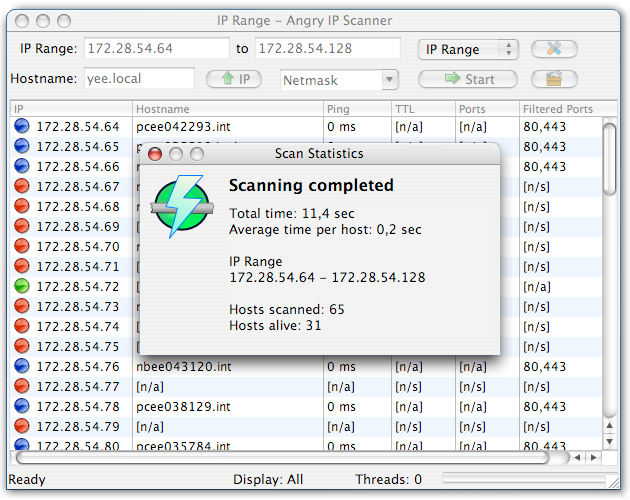
A hacker can track people and snoop for their data using their IP address. Angry IP Scanner also goes by the name of ”ipscan” and helps someone scan IP addresses and ports to look for doorways into a user’s system. It is an open source and cross-platform software and one of the most efficient hacking tools present in the market. Network administrators, as well as system engineers, are known to use Angry IP Scanner quite frequently.
angry-ip-scanner-7

KALI LINUX

Kali Linux was released in August 2015. It has a major release known as Kali Linux 2.0. This app is packed with distribution and interface tools. It has an improved hardware and supports a large number of Desktop environments. Kali Linux is a security-focused operating system you can run off a CD or USB drive, anywhere. With its security toolkit, you can crack Wi-Fi passwords, create fake networks, and test other vulnerabilities.
Kali_Linux_2

CAIN & ABEL

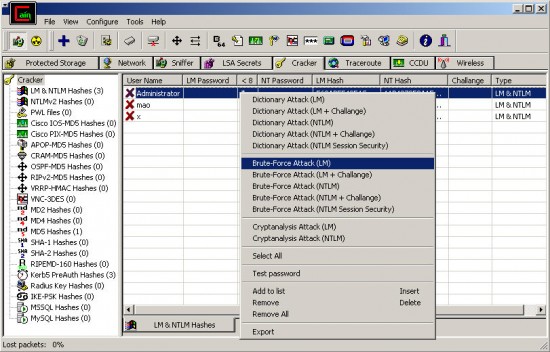
Cain & Abel is a password recovery and hacking tool, primarily used for Microsoft systems. It helps with password recovery by cracking encrypted passwords using a few brute force methods like the dictionary method. Cain & Abel can also record VoIP conversations and recover wireless network keys.
CainAndAbel-550x352

BURP SUITE

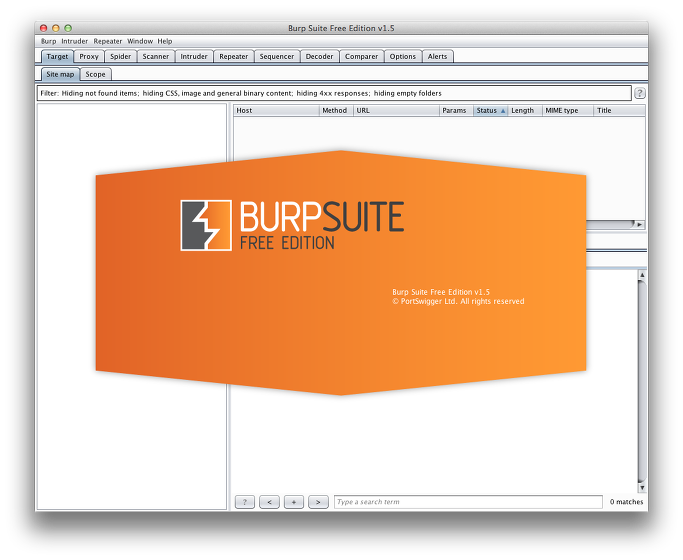
Burp Suite Spider, which is used to map out and list the different parameters and pages of a website merely by examining the cookies and initiating connections with applications residing in the website, is arguably the most important component of Burp Suite. Vulnerabilities in the web applications can be easily identified using Burp Suite, and many hackers employ this method to find a suitable point of attack.
burpsuite

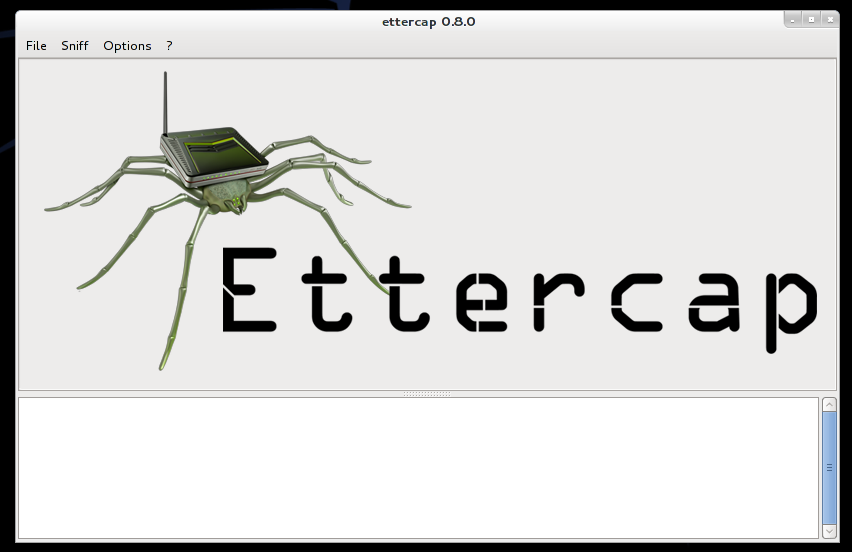
ETTERCAP

Widely popular tool, Ettercap helps deploy a Man in the Middle attack. Attackers can use different attack methods on a victim’s system if its functioning is successful.
ettercapgui

JOHN THE RIPPER

John the Ripper is a password cracking tool and uses the method of a dictionary attack, where different combinations of the words in a dictionary are matched against an encrypted string to find a hit. John the Ripper is obviously a brute force technique, and its viability depends on the strength of the password chosen by the user. Like all brute force methods, it will give a positive result, though the time it spends in doing so helps one decide whether to opt for it or not. It is a common tool used by hackers, though.
johntheripper2_10_carrousel_02

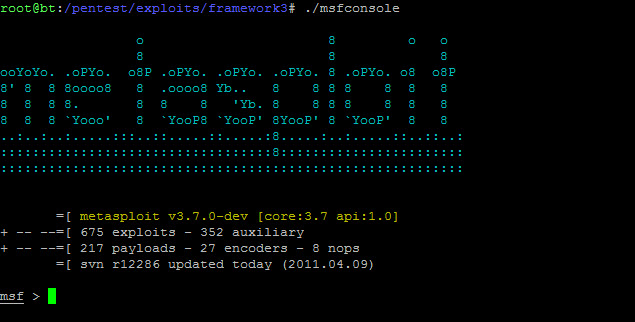
METASPLOIT

Metasploit is another cryptographic tool that is hugely popular with hackers, whether they are black hat or white hat. It helps hackers gain knowledge about known security vulnerabilities. Its evasion tools are one of the many applications of Metaspoilt.
metasoloitOther noteworthy tools include NmapWiresharkAircrack-ngNessusTHC HydraNetcat and Putty.

CONCLUSION

In this article, we saw some common and popular hacking tools that are used extensively by hackers to help them in their task. These tools are also used by both cyber-criminals and ethical hackers to infiltrate or to protect a system respectively.

Labels: , ,

Monday, May 9, 2016

10 WAY TO PROTECT YOUR PC

How well would you cope if all of the data on your computer was suddenly inaccessible? Or what if your credit card numbers were stolen online?
Unfortunately these are ever-present dangers. But there is free software available that will allow you to safely protect your computer.
In the past, running anti-virus software was enough to keep you protected. But nowadays, there are at least three components you’ll need for proper PC security:
  • Anti-virus
  • Anti-spyware
  • Firewall
None of these programs will guarantee that your computer is safe, but here are 10 free software applications you can use to help protect your personal data from harm. (Note also that many of these programs are intended for personal/home use only.)
Operating System Updates
If you are using Windows (like about 90% of web users) you need to make sure your copy of Windows is kept up-to-date using Windows Update. This protects you against any vulnerabilities or bugs that have been discovered in the operating system. The best solution is to make sure automatic updates are on, but if you choose to update manually, Microsoft recommends that you check for new updates once a week.
Spyware
Probably the largest threat to your computer is spyware. Spyware can add annoyances to your web browsing like extra popups or redirecting you to inappropriate websites. Most dangerously, it can allow unscrupulous individuals to steal your personal information including credit card numbers or banking data.
Windows Defender
Windows Defender from Microsoft won’t interfere with other spyware apps, so it’s a good idea to have it running even though it is not the most effective anti-spyware tool available. If you have Vista, make sure it’s turned on by going to Start > All Programs > Windows Defender, then Tools > Options, and underAdministrator options, select or clear the Use Windows Defender checkbox. If you have XP, you candownload Windows Defender for free from Microsoft’s website.
Malwarebytes’ Anti-Malware 
Malwarebytes’ Anti-Malware is described by CNet as a “surprisingly effective freeware antimalware tool.” Its free version is fast and generally very effective at identifying and removing spywar, trojans, and other troublesome software. (Note that realtime protection is only available in the paid version.)
Spybot Search & Destroy
Spybot S&D is lightweight and frequently updated. It scans your computer quickly compared to many other anti-spyware applications, and includes optional real-time (constant) protection. However its interface can be confusing so you’ll have to take a little time to learn how to use it.
Comprehensive guide on network security from Answers.com’s Networking Expert Chad Williamson.
Anti-virus
Viruses used to be the most common computer threat. Today viruses are less common than spyware, but it is still necessary to run anti-virus software to keep your computer protected. Most anti-virus software continually scans your computer as you work so that you will immediately be alerted to potential threats.
Avast! Anti-Virus
Avast! is oddly named but it doesn’t take up a lot of system resources and includes “anti-rootkit” protection. (Rootkits are programs hackers use to access systems.) Free registration on the Avast! website is required to obtain a license key to use this software.
Avira AntiVir
A third option for virus protection is Avira AntiVir, which requires no registration to download and use. It does not scan incoming or outgoing email, but it is usually fast when doing full-computer scans and runs constantly to keep you protected.
AVG Anti-Virus Free Edition
AVG was one of the first free anti-virus applications and is a reliable standard. Its newest version includes some new features and a new interface but has been criticized for slowing down your computer a bit more than previous releases, so it’s best for reasonably fast/recent computers.
Firewall
A firewall moderates the data that is allowed in and out of your computer. Hardware firewalls (such as a router) prevents data (except the types that you choose) from entering or leaving your computer. Software firewalls can also monitor which programs are sending and receiving data and allow you to prevent individual applications from doing so.
Windows Firewall
Windows Firewall is included with Windows XP SP2 and Vista. Since you likely already have it, you might as well use it, even though it is less effective than other free solutions. To make sure it’s running, in XP go to Start > Control Panel > Windows Firewall … in Vista, go to Start > Control Panel > Security > Windows Firewall.
Comodo Firewall Pro
Comodo Firewall Pro is the highest rated free firewall program as judged by an independent security organization.[1] It also includes some basic virus protection and spyware protection, but it should not be used as a replacement for those programs. Comodo is a good choice if you’re looking for a full featured free firewall solution.
Web Browser
The final software recommendation to keep you safe is using Mozilla Firefox or Google Chrome as your web browser instead of Internet Explorer. Although IE9 presents many significant improvements over previous versions, Firefox and Chrome (or Opera, another free competitor) are web browsers which include built-in security features to try to keep you safe from “phishing” sites (fake sites that try to trick you into entering personal information) and are not vulnerable to certain types of attacks that Internet Explorer is.
Final advice
Of course the very best way to avoid spyware, viruses, and hacker attacks in the first place is to be cautious! Carefully choose which websites you visit, don’t click links in email or instant messages, and don’t install any software without researching it first. If you keep these guidelines in mind, you’ll be on the right track to keeping your personal computer and your data safe!

Labels: ,